
Parent Resources
Your Questions, Answered
-
Our aerial semesters run for 12 weeks. When you register, your child's spot is reserved for the entire semester!
Please note: Enrollment in the current semester does not automatically carry over to the next semester. Families must re-register to secure a spot in future sessions.
-
DROP-OFF: For safety reasons, parents or guardians must bring students inside the building and remain with them in the lobby until class begins and the instructor collects the group.
PICKUP: Parents or guardians must come inside the building to pick up their child after class. Students will not be released to walk to vehicles unattended.
-
Yes! For students NEW to aerial, our Level 1 or All Level classes are available to book a single class in advance. Drop-in class spots can be booked up to 2 hours before class begins here: Book a Drop-In Spot Here
For students who have experience, we offer assessments (30 minutes for $30) to work 1:1 with a coach to determine the best class placement for your child. Request an Aerial Assessment Here.
-
Our aerial students are required to wear ankle-length leggings and shirts that can be tucked into their leggings.
We recommend tight-fitting clothes, as students love going upside down and the apparatuses can sometimes “grab” loose clothing.
Please feel free to bring a leak-proof water bottle (clear water only).
-
You can view your child's upcoming classes, book other opportunities for yourself or your child, and make cancellations through the Momence mobile app. Links to download can be found here.
-
Cancellations should be made through the Momence app 8-24 hours before class.
Any cancellations made within 2-hours of class time will result in a late cancellation/no-show fee of $5.
*The cancellation, late-cancellation, and no-show policies and fee are to encourage courtesy to our instructors when possible. Our coaches create lesson plans catered to a group and individualized for each student we expect to attend a specific class.
-
Yes. Students may receive up to:
One makeup class per month
A maximum of three makeup classes per semester
To qualify, the studio must be notified of the absence at least 8-24 hours before class via email (not text message) to hello@refugeaerial.com
Makeup classes will be coordinated based on availability of the student and scheduled classes. If none of the classes provided by the studio work for the student, the classes will be unfortunately lost. Refunds will not be issued in the case that a makeup class cannot be scheduled.
-
After cancelling the class in Momence, makeup classes can be requested by emailing hello@refugeaerial.com
To qualify, the studio must be notified of the absence at least 8-24 hours before class via email (not text message) to hello@refugeaerial.com
Makeup classes will be coordinated based on availability of the student and scheduled classes.
If none of the classes provided by the studio work for the student, the classes will be unfortunately lost. Refunds will not be issued in the case that a makeup class cannot be scheduled.
-
Yes! Refuge Aerial typically hosts student showcases twice per year—once in the spring and once in the fall or winter.
Participation is completely optional but encouraged for students who are interested.
Please note that showcase participation fees are separate from semester tuition, and showcase routines are not taught during regular class time.
-
In rare circumstances such as severe weather, instructor illness, or emergencies, Refuge Aerial may modify class dates or times.
Families will be notified by email as soon as possible.
-
Your child's scheduled class dates can be found in the Momence app.
Holiday closures and semester calendars are listed on the semester registration page and Parent Resources page.
-
Please direct all questions, concerns, schedule changes, and account issues to the studio at hello@refugeaerial.com. Email is preferred and helps our team make sure all requests get answered!
To respect our instructors' personal time, please DO NOT contact instructors directly through social media, personal phone numbers, or personal email accounts.
Parent & Semester Policies
Downloadable PDF
A Parent’s Guide to Momence
First-Time Login: Register Your Child Through the Website
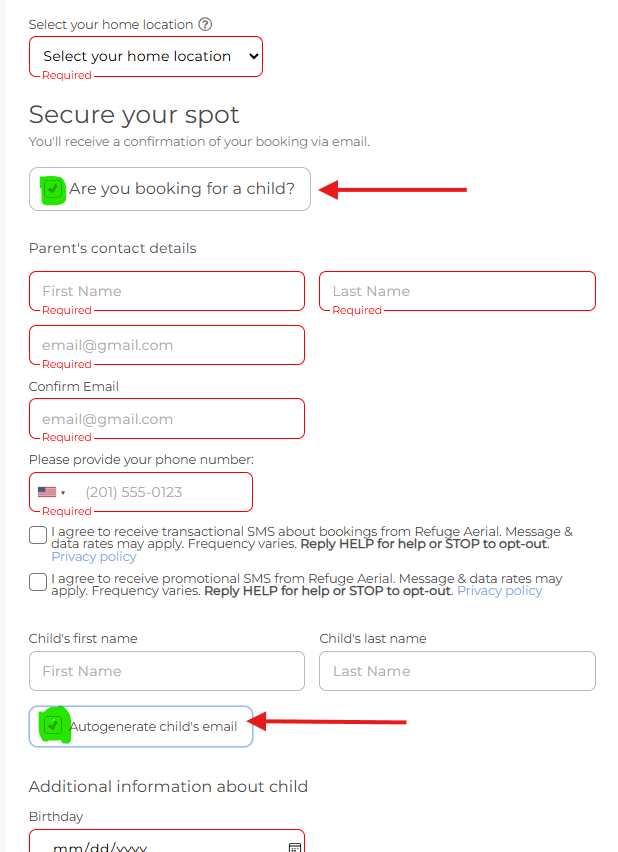
If this is your first time registering your child for a semester or class at Refuge Aerial, the easiest way to get started is through the website. Under the Kids & Youth tab in the menu at the top of the page, find the semester you’d like to enroll your child for, and click “Book Now” to register.
Select Refuge Aerial as your home location.
CLICK THE BOX next to “Are you booking for a child?” and complete the information that follows.
CHILD’S EMAIL - Select the option to "“auto-generate” an email for your child. This will ensure all emails for your child’s bookings are forwarded to you.
Complete registration through payment.
Download the Momence Mobile App
Download the Momence mobile app available on iOS and Android.
Log in using the same login information and email as you did in the registration process.
If you don’t have a password, input the email address you used to register and then use the “Forgot Password” option to complete sign in.
Enable Child Bookings in the Momence Mobile App
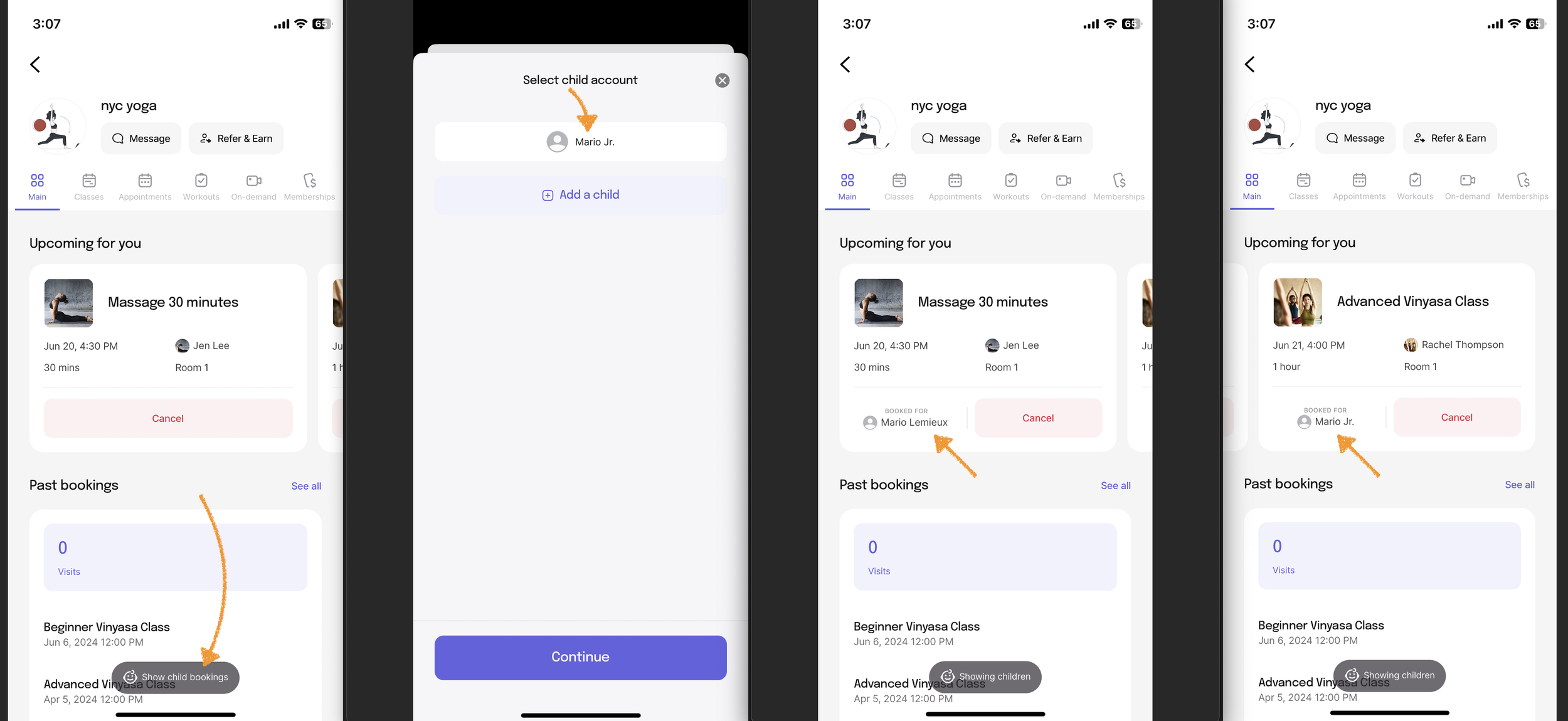
In the mobile app, parents can see their child's upcoming appointments and classes by tapping 'Show child bookings' > selecting the child, then Continue.
Afterward, parents will see their child's name assigned to all bookings they're registered for.
How to View Upcoming Bookings
Upon opening your Momence mobile app, your upcoming bookings will immediately show under “Upcoming for you”
How to Cancel a Class in the App
Find the class you’d like to cancel in your child’s upcoming bookings and use the red “Cancel” button to cancel their spot.
If you do not see your child’s classes, make sure the child icon at the bottom says “Showing Children”
If you cancel 8-24 hours in advance and intend to schedule a makeup lesson, please email hello@refugeaerial.com to coordinate a makeup lesson.
How to Re-Enroll and Book In the App
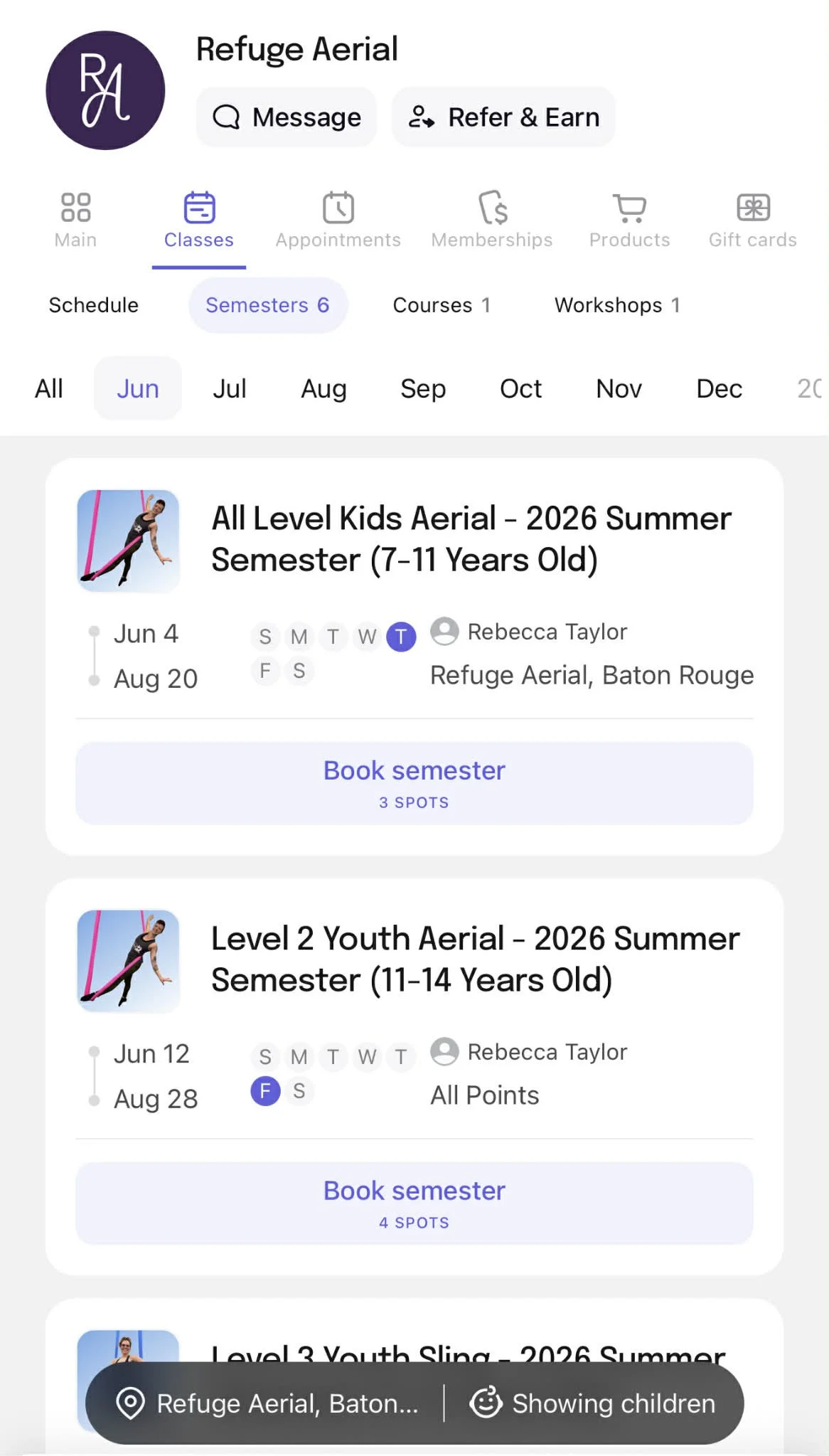
All Kids and Youth class semesters and drop-in classes can be found in the Momence app for re-enrollment.
Select “Classes” in the options listed along the top of the app
Now select “Semesters” at the top to view all semesters and available spots
Remember to select your child when registering!
Showcase Opportunities will be available under “Courses” when registration is announced.